Key facts at a glance
Compare PWM PC case fans on Amazon ↗Affiliate link · As an Amazon Associate I earn from qualifying purchases. Search results can include other models. Check the model, condition, seller, current price, compatibility and delivery to your country.
| Air path | Use the case manual to identify intake, exhaust and dust filters. Keep cables clear of fan blades and vents. |
|---|---|
| Measure first | Note temperatures and noise during the same game or work task. Record room conditions so a cooler day does not look like a fan upgrade. |
| After change | Repeat the same workload and compare both heat and noise. More fans are useful only if the result improves your own setup. |
| Start with the case layout | Front or bottom intake and rear or top exhaust is a starting arrangement, not a rule for every case. Follow the case and cooler instructions. |
| Check fan direction | Use the airflow arrow or the maker’s own diagram. Reverse-blade fans can make visual guesses wrong. |
| Judge the result | Compare temperatures and noise with the same workload before buying more fans. |
Should you add more gaming PC fans?
| The short answer | Record temperatures and noise during your usual game before changing anything. Check the existing fan direction and blocked vents. Change one part of the airflow path, then repeat the same test; more fans are not useful evidence that cooling has improved. |
|---|
Compare PC fan controller PWM on Amazon ↗Affiliate link · As an Amazon Associate I earn from qualifying purchases. Search results can include other models. Check the model, condition, seller, current price, compatibility and delivery to your country.
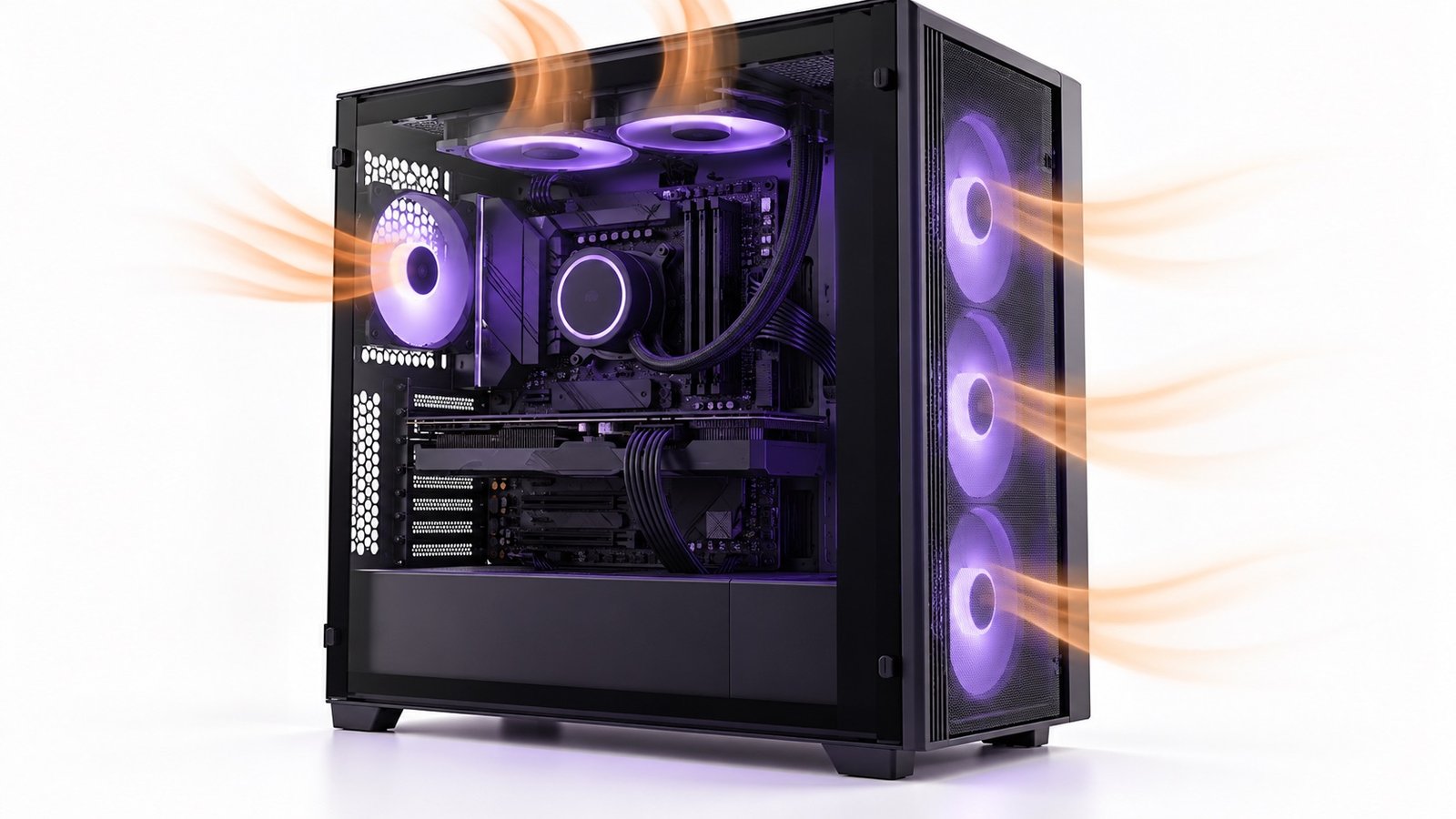
Gaming PC Airflow: quick buying checks
| What to know | Last checked 14 October 2026. A gaming PC with several glowing fans can still run hot or sound loud if the fans fight each other, a solid panel blocks intake, or dust chokes a filter. The sensible goal is a clear path for outside air to enter, pass useful components and leave the case, verified under your own workload. This guide helps you plan a case-fan upgrade without promising a temperature drop that only a measured test could establish. |
|---|
Find the problem before buying more fans
| What to know | Note the case model, current fan positions and whether the CPU and graphics card become hot in the tasks you actually run. Listen for a fan ramp that starts with gaming or only during startup. Check for dust in filters and heatsinks, a closed front panel or a cable obstructing the flow. A system that already holds stable temperatures at tolerable noise may not need another fan. Replacing a healthy setup because a case has empty mounts is an easy way to spend money without improving the experience. |
|---|---|
| In practice | Record baseline readings with the same game or workload, room temperature and fan profile before changing hardware. Watch CPU and GPU temperature alongside clock behaviour and fan speed; one number in isolation can be misleading. A warm graphics card may be normal for its design, while a high fan speed in a dusty case points to an easier fix. Do not use a single online screenshot as a target for a different case, room or graphics card. |
Make a deliberate intake-to-exhaust route
| What to know | Case maker be quiet!’s airflow guide explains the basic route: outside air enters through inlets, passes internal components and exits through exhaust fans. Many conventional towers are designed around front-to-back and bottom-to-top flow. That is a useful starting point, not a universal diagram for every inverted, compact or panoramic case. The actual mesh, filters, drive cages and panel clearance matter. A fan pressed against a mostly solid surface may move much less useful air than its advertised open-air rating suggests. |
|---|---|
| In practice | For a common mesh-front tower, front intake plus rear exhaust is a straightforward first arrangement. Add top exhaust only when the case supports it and the measured result justifies it. If the front is restrictive, a bottom or side intake may be relevant to the graphics card, but check dust filters and floor clearance. Do not assume that every vacant mount must be filled. An extra exhaust near the front can pull fresh air out before it reaches a CPU cooler, depending on the case. |
Confirm which way each fan blows
| What to know | Many fans have an arrow on the frame showing airflow and blade rotation. If yours does not, use the exact maker’s installation guide. Noctua’s direction FAQ explains the sticker orientation for its fans. Do not generalise that sticker rule blindly to every brand or reverse-blade model. A fan mounted the wrong way may undermine the intended path even though its lighting looks symmetrical. Check direction before screwing it in, then confirm visually after installation. |
|---|---|
| In practice | For a front intake, air should enter from outside. For a rear or top exhaust, air should leave the case. If you use a liquid cooler radiator, follow the cooler and case instructions for tube placement and fan direction, then test CPU and GPU outcomes. A radiator used as front intake can supply cool air to the CPU cooler while warming air reaching the GPU. Top exhaust can do the reverse. Neither arrangement is universally best; the two components and noise profile must be evaluated together. |
Fan size and connector have to fit
| What to know | Measure the supported mount sizes in the case manual. A 140 mm fan cannot be assumed to fit every 120 mm position, and a fan’s frame thickness can interfere with a radiator, GPU cable or drive cage. Check how many positions the case actually supports at each location. The motherboard manual should show available fan headers, their current limits and whether they are controlled by PWM or voltage. Do not connect an arbitrary stack of fans through an unverified splitter. A powered hub can be appropriate, but it must match the fan type and power arrangement. |
|---|---|
| In practice | RGB or ARGB lighting connectors are separate from fan motor connectors. A fan may spin while the lights stay off, or illuminate while its motor is not controlled as expected. Match voltage and connector pinout exactly; do not force a three-pin addressable-lighting plug onto an incompatible header. If your case uses a proprietary controller, read its own manual before mixing brands. Product photos often focus on lighting and omit the electrical details that decide whether you can install the fan safely. |
Compare airflow gaming PC case on Amazon ↗Affiliate link · As an Amazon Associate I earn from qualifying purchases. Search results can include other models. Check the model, condition, seller, current price, compatibility and delivery to your country.
Balance noise and useful cooling
| What to know | A fan’s advertised airflow figure is measured under specified conditions and may not describe performance behind a dense filter or radiator. Static pressure can matter where air must pass an obstruction, but the rating alone does not prove how quiet it will be in your case. Compare credible tests at similar noise levels where available. A larger fan running slowly may be comfortable in one mount, while a good smaller fan may fit the case better. Listen for motor tone and vibration as well as published decibels. |
|---|---|
| In practice | Set a fan curve that responds to the temperature most relevant to its job, using your motherboard’s supported controls. A noisy curve that jumps between speeds every few seconds can feel worse than a slightly warmer but steady setting. Make one change at a time, run the same workload and record the result. If temperatures stay safe and performance stable, your goal may be lower noise rather than the lowest possible benchmark temperature. Avoid disabling thermal protection or forcing a fan to a speed where it stalls. |
Dust and placement shape the long-term result
| What to know | Clean removable filters and visible dust at sensible intervals according to your environment. Turn off and unplug the PC before opening it; follow the case and component makers’ cleaning instructions. Do not let a powerful air blast overspin a fan or drive dust deeper into a connector. Keep the tower off deep carpet if it has bottom intake, leave room around vents and avoid pushing its rear against a wall. Cable management can clear the airflow path, but you do not need a showroom-perfect interior to get a functional setup. |
|---|---|
| In practice | Some builders aim for slightly more intake than exhaust to reduce unfiltered air entering gaps, but real pressure depends on fan curves and case resistance, not simply the count of fans. A pair of large intakes behind a dense filter can move less air than one unrestricted exhaust. Treat pressure labels as a tuning concept, not a shopping promise. Observe where dust collects and whether the case’s filters are doing their job over several weeks. |
When the problem is elsewhere
| What to know | If the CPU is unusually hot while the GPU remains cool, check the CPU cooler’s seating, fan operation and manufacturer guidance before adding case fans. If the GPU is hot in a glass-front enclosure with limited intake, a different panel or case may help more than filling top mounts. If performance drops only after long sessions, inspect dust, fan curves and thermal behaviour with reliable monitoring tools. Power supply faults, unstable overclocks or software issues are separate diagnoses; changing airflow may not solve them. |
|---|---|
| In practice | Before replacing a fan, check whether it is actually failing. A rattle might be a loose panel or cable touching blades. Power down and inspect safely. If a fan stops repeatedly, replace or service it using a compatible model. For a prebuilt PC, check warranty terms before rewiring a controller or changing a cooler. A small change that preserves the warranty and improves a documented problem is better than an unmeasured rebuild. |
A repeatable airflow test
| What to know |
|
|---|
Common questions
| Do three intake fans always beat two? | No. Fan models, speed, filters, case openings and component placement matter. Measure the result in the actual case rather than treating a fan count as a cooling score. |
|---|---|
| Should every top mount be exhaust? | Not automatically. A top fan near the front may remove incoming cool air before it reaches the CPU cooler in some designs. Use the case maker’s layout guidance and compare the result under load. |
| Can RGB lighting tell me airflow direction? | No. Use the frame arrow or the exact fan model’s installation guide. Reverse-blade fans make visual assumptions particularly unreliable. |
Questions before you buy
| Question | Useful answer |
|---|---|
| Which case fans should be intake and exhaust? | Start with the case and cooler instructions. A clear path from intake to exhaust is the goal; fan count alone is not. Check the airflow arrows or the maker’s diagram, especially for reverse-blade fans whose appearance can be misleading. |
| Should I add more fans if my GPU is hot? | Record room conditions, workload, temperature and noise first. Check blocked filters, cable clearance and existing fan direction. Change one thing and repeat the same task. More fans are useful only if the measured result improves enough to justify the noise and cost. |
| Does positive pressure keep all dust out? | Do not treat pressure balance as a dust-proofing guarantee. Filters, gaps, placement and cleaning still matter. Inspect where dust builds up in your actual case and keep the intended intake route clear. |
| How should I compare two fan setups? | Use the same game or repeatable workload, room conditions and fan settings. Record both temperature and noise. A small temperature improvement that makes the desk unpleasant may be a poor trade for the way you use the PC. |
Compare CPU air cooler on Amazon ↗Affiliate link · As an Amazon Associate I earn from qualifying purchases. Search results can include other models. Check the model, condition, seller, current price, compatibility and delivery to your country.
Official sources and corrections
| Sources and method | Sources and method: be quiet! airflow fundamentals and Noctua fan-direction FAQ. This is original NextAIGen Editorial setup guidance, not a temperature test of a specific case. The cover is a concept illustration. Compare a custom build with a prebuilt PC or send a source-backed correction through our contact page. |
|---|