Key facts at a glance
Explore 4K 120 Hz TVs on Amazon.com ↗Affiliate link · As an Amazon Associate I earn from qualifying purchases. Search results can include other models. Check the model, condition, seller, current price, compatibility and delivery to your country.
| Buying check | TV is usually easier for | Monitor is usually easier for |
|---|---|---|
| Where you sit | Couch and group play | Desk and close viewing |
| Screen size | Large shared image | Compact personal image |
| 4K 120 Hz | Check the correct HDMI port | Check 4K 120 Hz over HDMI, not only DisplayPort |
| VRR and ALLM | Check model manual and firmware | Check PS5-specific HDMI support |
| Sound | Built-in speakers may be enough | May need headset or speakers |
| Refresh-rate reality | PS5 can output up to 120Hz in supported modes and games. A 240Hz monitor does not make PS5 games run at 240fps. | |
| Check the whole chain | Verify the display’s resolution, HDMI input, VRR support and the game’s settings together. A screen label alone does not establish the mode you will get. | |
PS5 TV or gaming monitor: which is the better buy?
| The short answer | Choose by viewing distance and the games you play. Check which HDMI port supports the resolution, refresh rate and other features you need. Include speakers or a headset where necessary; a screen specification is only useful if your console and game can use it. |
|---|
Explore 4K 120 Hz monitors ↗Affiliate link · As an Amazon Associate I earn from qualifying purchases. Search results can include other models. Check the model, condition, seller, current price, compatibility and delivery to your country.
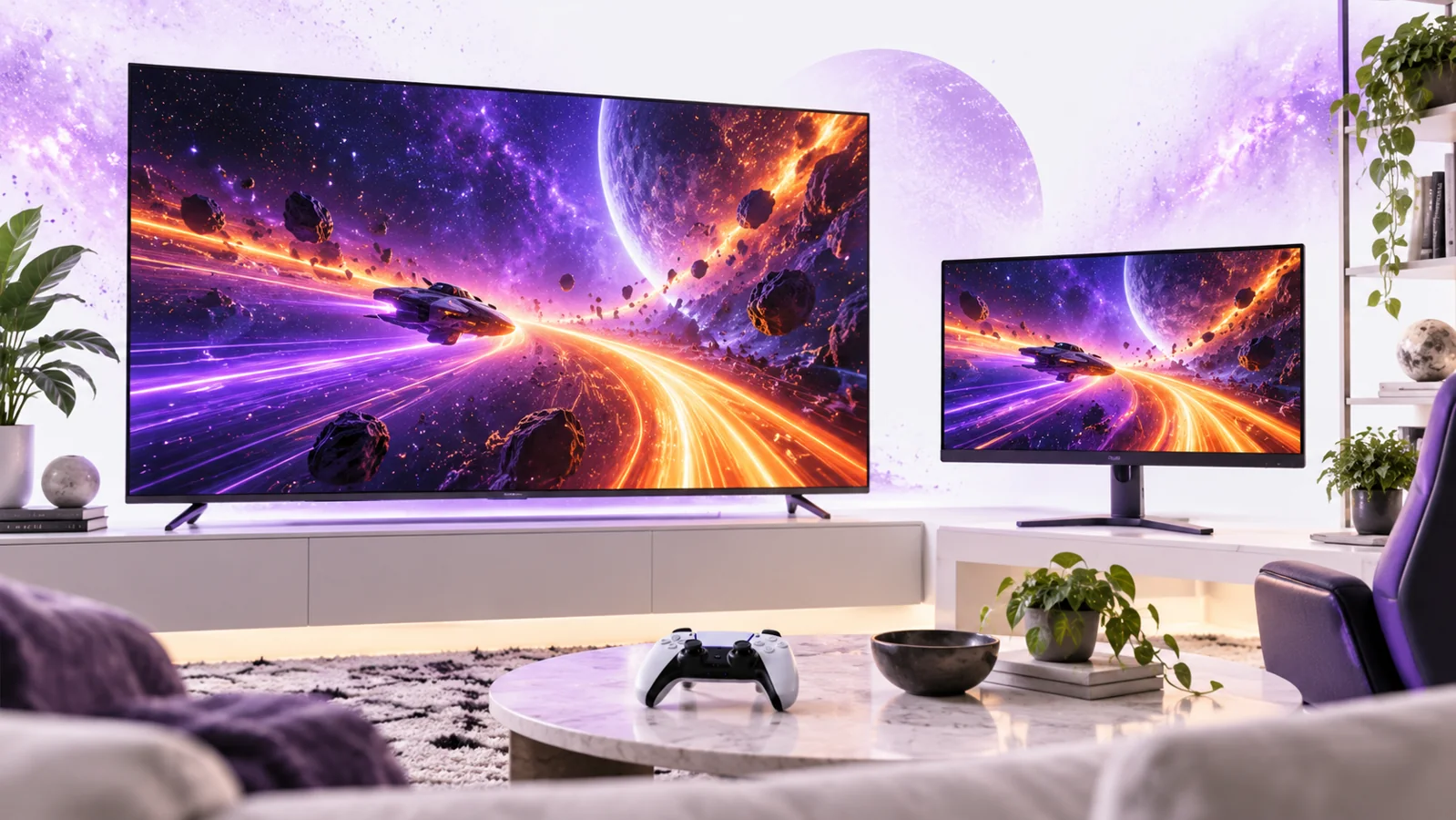
| What to know | Updated 14 October 2026. A PS5 can send a 4K 120 Hz signal, but you will see that result only when the game, screen, HDMI connection and settings all support it. This guide helps you choose between a TV and a gaming monitor without paying for numbers you will not use. It is based on PlayStation’s published support information and practical buying checks, not lab testing. |
|---|
PS5 gaming monitor or TV: match the screen to the console
| Will a 240Hz monitor give PS5 240fps? | No. PS5 can output up to 120Hz in supported games and modes. A 240Hz monitor does not make PS5 output 240fps. |
|---|---|
| How do I check a 4K 120Hz offer? | Check 4K 120Hz support over the display’s HDMI input. A high DisplayPort limit is not enough. The console settings, game mode and HDMI connection must also support it. |
| When is a 1440p monitor worth comparing? | Compare 1440p and 4K from your normal desk distance. Check the exact HDMI modes that work with PS5 before choosing screen size and sharpness. |
| Which cost is easy to miss? | A monitor may need speakers or a headset. A TV needs enough room. Add the stand, sound and cables you need to the total. |
| What to know | Affiliate disclosure: As an Amazon Associate I earn from qualifying purchases. These Amazon.com search links are for comparison; they are not verified stock or product recommendations. Check the exact model, panel, HDMI ports, seller, delivery and local warranty before buying. |
|---|---|
| In practice | Explore 4K 120 Hz TVs on Amazon.com ↗ · Explore 4K 120 Hz monitors ↗ |
PS5 TV vs gaming monitor: the quick choice
| What to know | Choose a TV if you play from a couch, share the screen or also watch films. Choose a monitor if you sit at a desk, want a compact screen close to your eyes, or also connect a PC. A good 4K 60 Hz display can be a better buy than a weak “4K 120 Hz” product with poor picture quality. Your room, viewing distance and the games you play matter more than one marketing badge. |
|---|
What 4K, 120 Hz and frame rate mean
| What to know | 4K describes picture resolution. On PS5, the usual 4K setting is 2160p. A 120 Hz screen can refresh up to 120 times each second, but that does not force every game to render 120 different frames. Game developers choose visual and performance modes. Some games support 120 frames per second; others do not. If the game tops out at 60, a 120 Hz purchase may still bring other benefits, but it will not magically double that game’s frame rate. |
|---|---|
| In practice | At a normal couch distance, a bigger screen can feel more immersive. At a desk, a smaller monitor can keep the whole image inside your natural field of view. Screen size does not by itself show sharpness; resolution and viewing distance work together. Measure the space you actually have before comparing online photos. A huge TV in a small room or a tiny monitor viewed from a sofa can both disappoint. |
HDMI 2.1: check the port, not just the box
| What to know | PlayStation says PS5 supports HDMI 2.1 and 4K 120 Hz output. A screen listing “HDMI 2.1” may still differ in which ports support high-bandwidth modes and which gaming features are enabled. Read the manufacturer’s manual for the exact model number. Some TVs reserve full gaming capability for one or two HDMI ports. A monitor may reach its headline maximum over DisplayPort while offering a different limit over HDMI. PS5 uses HDMI, so the HDMI specification is the one to verify. |
|---|---|
| In practice | Start with the HDMI cable supplied with the console or a certified Ultra High Speed HDMI cable. Plug directly into the screen while testing. An older receiver, switch, capture card or cable can be the weak link. If you later route sound through other equipment, verify that every device in the chain passes the required signal. Do not buy a new screen to solve a connection fault until you have tried the direct connection. |
VRR, ALLM and HDR in plain language
| What to know | VRR means variable refresh rate. It lets a compatible display change its refresh timing to better match game output, which may make uneven frame delivery less distracting. It does not raise the game’s actual frame rate. PlayStation’s menu has a VRR setting and shows information about the connected HDMI device. Check that your exact screen supports the PS5’s VRR behavior, not just a generic PC-only claim. |
|---|---|
| In practice | ALLM means auto low-latency mode. A compatible TV can switch into a game-friendly setting when you play, reducing processing that can make controls feel slow. Sony notes that support depends on the TV; not every display with an HDMI 2.1 label necessarily supports every optional feature. A monitor often has less picture processing to begin with, but you should still compare its input-lag measurements from a trustworthy independent test if response is your main concern. |
| In practice | HDR can make bright and dark parts of a scene more convincing, but the badge alone is weak evidence of picture quality. Brightness, contrast and local dimming or panel technology influence the actual result. A low-cost screen can accept an HDR signal without delivering a dramatic HDR picture. Look for a reliable hands-on review of the exact model you plan to buy. We have not measured these screens ourselves, so this guide does not invent brightness scores. |
Compare certified HDMI cable listings ↗Affiliate link · As an Amazon Associate I earn from qualifying purchases. Search results can include other models. Check the model, condition, seller, current price, compatibility and delivery to your country.
1440p monitors can be sensible
| What to know | You do not need to buy 4K just because the console can output it. PlayStation’s settings include a 1440p test that checks supported 60 Hz, 120 Hz, HDR and VRR output on a connected device. At a desk, a good 1440p monitor may give you a useful mix of price, size and smoothness. Check the specific game and the screen’s HDMI behavior. A “165 Hz” or “240 Hz” PC monitor does not make PS5 output beyond its supported modes. |
|---|---|
| In practice | If you already own a 1440p screen, test it before replacing it. Open Settings, then Screen and Video, then Video Output, and run the 1440p test. Look at the console’s “Information for the Connected HDMI Device” page. That reports what the console sees from the current connection. A failed test may point to a cable, port, firmware or input setting rather than a fundamentally unsuitable panel. |
How to check your current setup in five minutes
| What to know |
|
|---|---|
| In practice | If the display suddenly drops to 1080p at 120 Hz, the PlayStation support page recommends checking the correct HDMI port, screen firmware, cable, intermediate devices and console video-transfer settings. Change one thing at a time so you know what actually fixed it. Keep the screen’s manual nearby; menu names vary by manufacturer. |
Audio, desk space and everyday use
| What to know | Many monitors have weak speakers or none at all. Add the price of a headset, speakers or audio solution if you need sound. A TV may already provide usable speakers, though a large room may benefit from a separate system. For shared play, think about controller seating and how far people sit from the screen. For desk play, check stand height, tilt, VESA support and whether you need room for a keyboard or work laptop. |
|---|---|
| In practice | Burn-in risk and warranty conditions depend on screen technology and usage, especially with static interface elements. Read the exact warranty and care instructions if you consider an OLED display. If you leave a PC desktop or game menu on for many hours, that may change your preference. We cannot give one universal winner because usage patterns differ. |
How to avoid a costly wrong purchase
| What to know | Make a short list of the games you actually play. Check whether they offer a 120 fps mode, and whether you value its smoother motion more than a sharper graphics mode. Measure viewing distance. Then compare three specific screens at the total checkout cost, including tax, mount, speakers and delivery. Read an independent review of each exact model for motion, HDR and input lag. Marketing terms such as “gaming ready” do not replace those checks. |
|---|---|
| In practice | Compare certified HDMI cable listings ↗ · Compare 1440p monitor listings ↗ |
Buying from outside the US
| What to know | Readers in the UK, Canada, Australia and other markets should use a local retailer to verify current price, taxes, shipping, plug type and warranty. An Amazon.com search is useful for discovering model numbers, but it does not guarantee that a product ships to your country or receives local support. Compare the exact model suffix, because regional versions sometimes differ in tuner, stand, power lead or warranty arrangements. |
|---|
Common questions
| Do I need HDMI 2.1 to enjoy PS5? | No. PS5 games also work with many compatible 1080p and 4K 60 Hz displays. HDMI 2.1 is relevant when you specifically want supported higher-bandwidth features such as 4K 120 Hz. Buy for the games and screen size you use now, not only for a spec you may never notice. |
|---|---|
| Will a 240 Hz monitor make PS5 run at 240 fps? | No. The console and each game determine supported output. A monitor can advertise 240 Hz for PC use, but you must check its HDMI modes and the PS5’s detected signal. Paying extra for a refresh rate the console cannot feed is unlikely to improve PS5 play. |
| What should I do before blaming the new screen? | Update the screen firmware, use the correct HDMI input, try the PS5 cable and connect directly. Then read the console’s connected-device information. Those steps are cheaper and faster than returning an otherwise good display. |
Questions before you buy
| Question | Useful answer |
|---|---|
| Does PS5 need a 240Hz gaming monitor? | PS5 supports up to 120Hz in supported modes and games; a 240Hz label does not make it output 240fps. Check the HDMI-supported resolution and refresh combination. DisplayPort-only specifications can be irrelevant to the console connection. |
| Why is PS5 not showing 4K at 120Hz? | Check the game’s performance mode, console video settings, HDMI cable and the display’s correct input. Read the screen manual for that port. Change one setting at a time so you can identify which part of the chain limits the mode. |
| Is a TV or monitor better for PS5? | Choose around viewing distance and room use. A couch and shared viewing favor a larger TV; a desk may favor a monitor. Compare supported HDMI modes, input behavior, sound and full setup cost before deciding by diagonal size alone. |
| What should I test during the return period? | Run a game you actually play, check text at your seating distance and test motion in its supported mode. Verify HDR and VRR behavior rather than assuming every branded feature looks better. Include speakers or a headset in the cost if the monitor lacks useful sound. |
Read next: make the next choice easier
| PS5 Pro vs PS5 → | Choose the console before paying for extras. |
|---|---|
| PS5 Games and Accessories → | Plan games, controllers and storage. |
| Gaming Laptop Buying Guide → | Compare the parts and cost of a gaming laptop. |
Compare 1440p monitor listings ↗Affiliate link · As an Amazon Associate I earn from qualifying purchases. Search results can include other models. Check the model, condition, seller, current price, compatibility and delivery to your country.
Official sources and corrections
| Sources and method | Sources and method: PlayStation’s 4K and video-output guide and PlayStation’s picture and sound troubleshooting. Buying interpretation is original NextAIGen Editorial work; no screen was tested for this article. Cover artwork is an original concept illustration, not an official product image. Continue with our PS5 Pro vs PS5 guide and PS5 games and accessories guide. |
|---|